Use Ask AI
Ask AI is an in-editor assistant that helps you write and refine code using natural-language prompts. You can use it in SQL queries and JavaScript modules (including JSObjects) to speed up development, explore your data model, and improve existing logic.
Ask AI has context about your connected datasources and database schema, so you can ask how to write queries, how to improve a query, or how to accomplish a task in JavaScript without leaving the editor.
Prerequisites
Before you use Ask AI, ensure the following:
- Your Appsmith instance is on v2.0 or later. See AI Assistant configuration for version details.
- An organization administrator has enabled AI Assistant and configured a provider in Admin Settings → Organisation → AI Assistant.
- For query-related prompts, you have a datasource connected to your app so Ask AI can use schema and table context.
Open Ask AI
When AI Assistant is enabled for your organization, you can open Ask AI in either of these ways:
- Ask AI button — Click the Ask AI button in the bottom-right corner of the query or JavaScript editor.
- Slash command — In the editor, type
/ask AIto open the Ask AI prompt.
The assistant opens in the context of the editor you are using (query or JavaScript module).
What you can ask
Ask AI is designed for development tasks in the editor. For example, you can:
- SQL queries — Write a new
SELECT,JOIN, or filter; add pagination; fix syntax; or optimize a slow query. - JavaScript — Generate functions in a JSObject, transform API or query results, or implement UI logic.
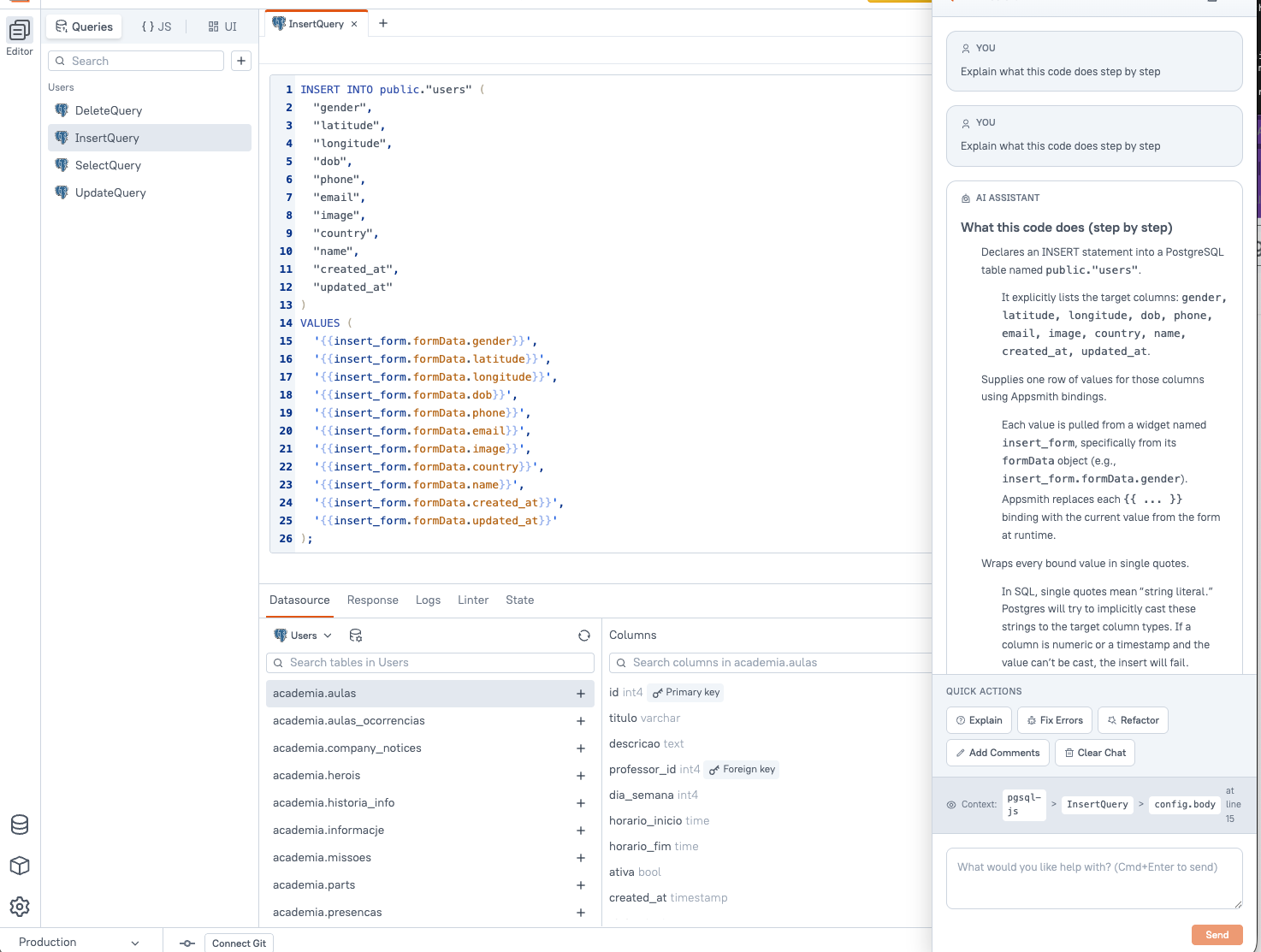
- Improve existing code — Paste or select code and ask Ask AI to refactor, explain, or fix errors.
Because Ask AI is aware of your database schema and datasource context, prompts like “show all orders from the last 30 days” or “join customers to orders on customer id” are more accurate when your datasource is configured in the app.
Use Ask AI in a query
- Open or create a query for your datasource (for example, PostgreSQL or MySQL).
- Open Ask AI using the Ask AI button or the
/ask AIcommand. - Describe what you want in plain language—for example, “List active users created this month” or “Improve this query to use an index-friendly filter.”
- Review the suggested SQL, then insert or edit it in your query before you run it.
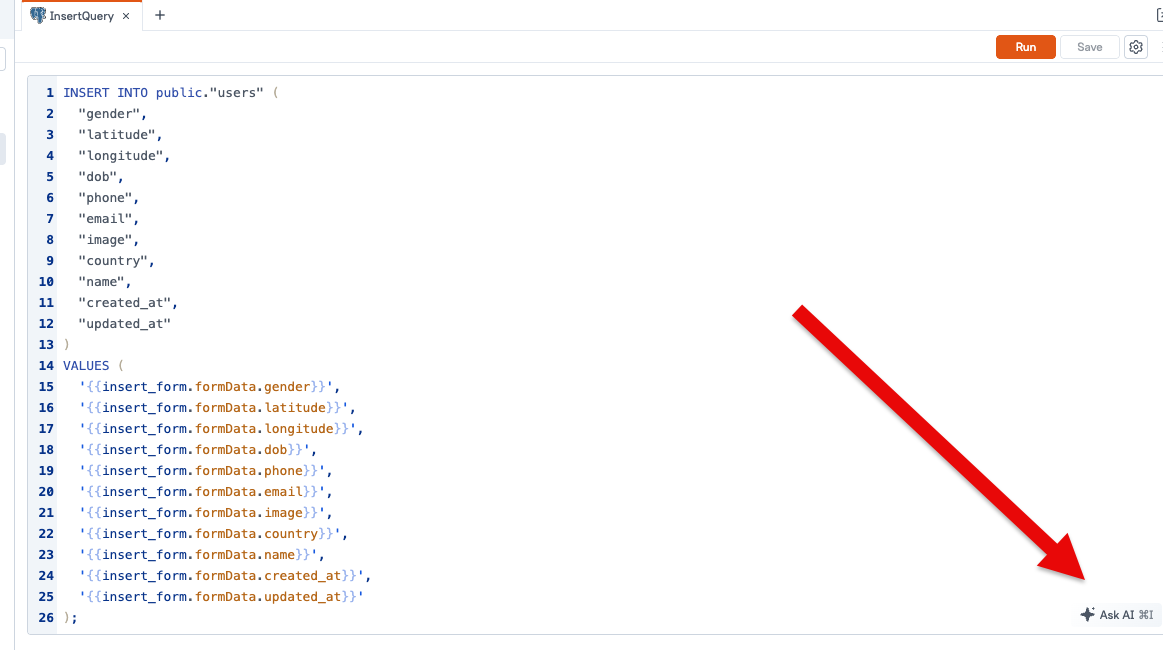
Connect the datasource and, where possible, select the relevant tables or run a schema discovery step in your environment so Ask AI has up-to-date context for table and column names.
Use Ask AI in JavaScript
- Open a JavaScript module or JSObject in your app.
- Open Ask AI from the bottom-right Ask AI button or type
/ask AI. - Ask for help with logic—for example, “Map query results to chart labels,” “Validate email before submit,” or “Explain what this function does.”
- Apply the suggested code to your module and test it in the app.
Example prompts
| Goal | Example prompt |
|---|---|
| New SQL query | “Select name and email from users where status is active” |
| Improve SQL | “Make this query more efficient and add a limit of 100” |
| Debug SQL | “Why might this join return duplicate rows?” |
| New JavaScript | “Return an array of product names from Query1.data” |
| Explain code | “Explain this function step by step” |
| Refactor | “Rewrite this to use async/await” |
Related documentation
- AI Assistant configuration — Enable Ask AI and configure your AI provider (administrators).
- Write Code in Appsmith — JavaScript, mustache bindings, and JSObjects.
- Connect Data — Connect datasources so queries and Ask AI have schema context.